

Why Default Settings Often Don't Protect You
Social media platforms are designed to encourage sharing and engagement. Their default privacy configurations typically reflect that goal - meaning your posts, profile details, and activity are often set to the broadest possible audience straight out of the box. This is not a secret, but many users never change these defaults because the settings menus are buried, updated frequently, and deliberately complex.
The practical consequence is that information you might assume is private - your phone number linked to your account, your location history, or which apps have access to your profile - can be visible or accessible to far more people and services than you realize. These aren't hypothetical risks. Data scraped from social profiles has been used in phishing campaigns, identity theft attempts, and targeted spam. Understanding what you're actually sharing is the first step toward making meaningful changes.
This isn't about fear - it's about informed control. You get to decide how visible you are online. The settings exist; they just require a little effort to find and configure. If you're also working on your broader digital security habits, our guide on habits that quietly undermine your online security covers complementary ground.
Platform Settings Change Without Notice
Social media companies routinely update their privacy interfaces and sometimes reset or add new defaults that favor broader data sharing. A setting you configured six months ago may no longer reflect your preference today. Build a habit of reviewing your settings at least once every three to six months to stay in control.
What You'll Need Before You Start
No special technical knowledge is required to complete this process. You'll work entirely inside the official settings menus of each platform. The steps in this guide describe the general categories of settings to look for - the exact labels and menu locations vary between platforms and are updated periodically, so use these as a map rather than a literal script.
What you will need
If you have children who use social media, reviewing their account settings together is also worth doing. Our separate guide on protecting children online addresses age-appropriate privacy considerations in more detail.
Use the Platform's Own Privacy Checkup Tool
Several major social platforms offer a built-in 'Privacy Checkup' or 'Security Review' wizard that walks you through the most important settings in one sitting. These tools are often found under Settings > Privacy or Security and are a reliable starting point before diving into individual options.
Step-by-Step: Adjusting Your Social Media Privacy Settings
Work through the following steps for each social media account you hold. Completing all seven steps for one platform typically takes between 15 and 25 minutes. Prioritize accounts you use most frequently or where you've shared the most personal information.
Locate the privacy and security settings
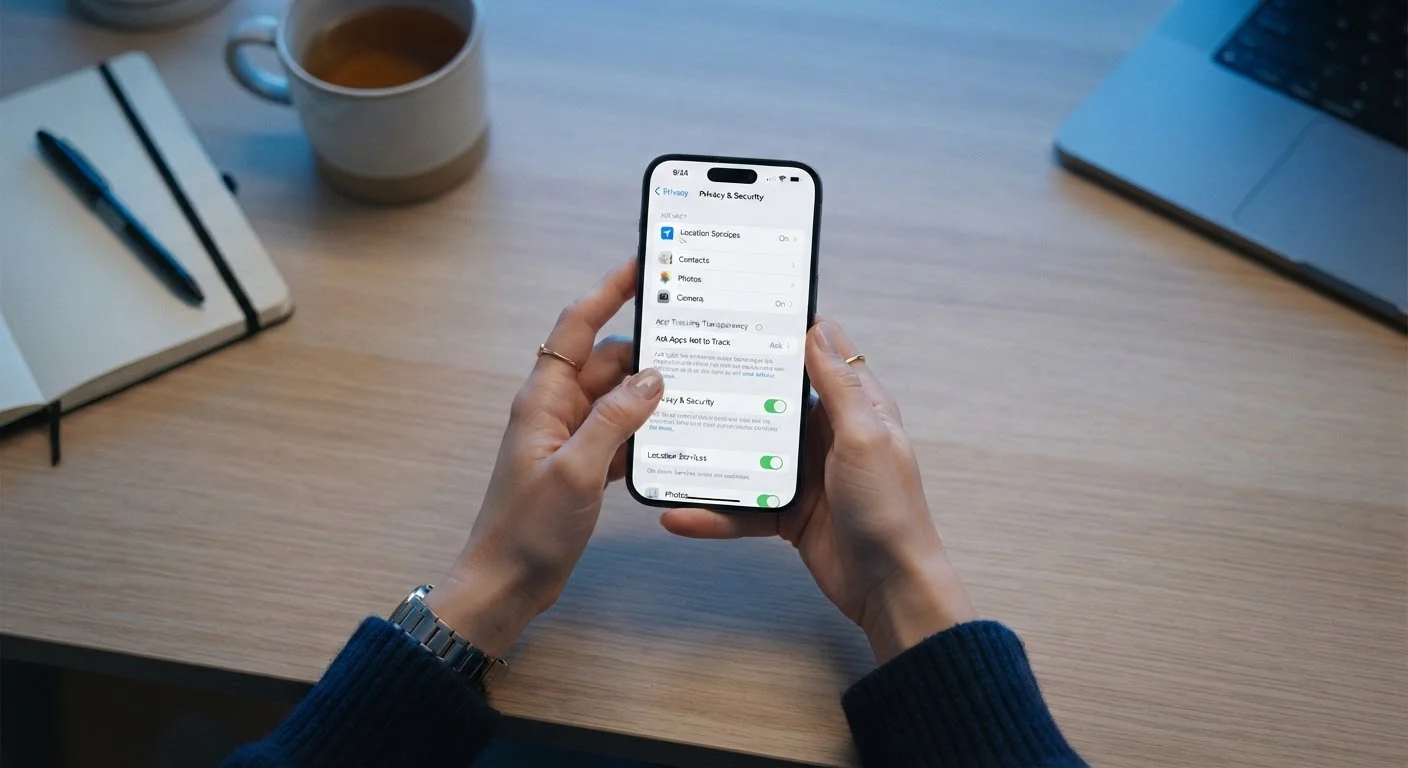
On most platforms, privacy settings are nested inside a general Settings menu - often represented by a gear icon. Look for sub-sections labeled Privacy, Security, or Account. On mobile apps, these menus are sometimes accessed by tapping your profile photo first. Bookmark or note the path so you can return easily in the future.
Adjust who can see your posts and profile
Look for audience controls labeled Who can see your posts, Post visibility, or similar. Options typically include Public, Friends/Followers, or custom groups. Set your default post audience to the narrowest group that suits your use. Also review individual profile fields - your email address, phone number, birthday, and hometown often have their own separate audience controls that default to public.
Review who can find and contact you
Most platforms have a discoverability section that controls whether people can find your account using your phone number or email address, and whether search engines can index your profile. Turn off search-engine indexing if you prefer your profile not to appear in Google results. Limit phone-number and email-based search to Friends of friends or No one where possible.
Also check settings that control who can send you direct messages or friend/follow requests. Restricting these to mutual connections significantly reduces unwanted contact.
Audit connected third-party apps
Navigate to the section typically labeled Apps and Websites, Connected Apps, or Authorized Applications. This shows every third-party service that has been granted access to your account. Remove any app you no longer use or don't recognize. Pay attention to the permissions each app holds - some request access to your friends list, post on your behalf, or read your private messages.
Turn off or limit location sharing
Location data is one of the most sensitive categories of information social platforms can collect. Check two places: the platform's in-app location settings (often under Privacy > Location) and your device's own app permissions (under your phone's system settings). Set location access to While using the app at most - Always on location access is rarely necessary for social media. Also disable any feature that automatically tags your location to posts unless you intentionally want that.
Enable two-factor authentication
Two-factor authentication (2FA) adds a second verification step when you log in, making it significantly harder for someone to access your account even if they have your password. Find this under Security settings. Authenticator apps generally provide stronger protection than SMS-based codes. Enable 2FA on every social account that supports it.
Review data and ad preference settings
Most platforms have a section covering how your data is used for advertising and personalization - sometimes called Ad Preferences, Data Settings, or Off-Platform Activity. Here you can typically limit whether the platform uses data collected from other websites and apps to target ads to you. You can also usually download a copy of all data the platform holds about your account, which is worth doing at least once to understand what's stored.
Maintaining Your Privacy Settings Over Time
Configuring your settings once is a strong start, but it isn't a permanent fix. Platforms push updates that can introduce new data-sharing options - sometimes enabled by default. A quarterly check-in of 10 to 15 minutes per platform is a realistic and effective maintenance habit.
Also think about the broader picture of your online presence. Social media privacy is one layer of a larger approach to digital safety. For example, using social platforms on public Wi-Fi introduces separate risks - our guide on what actually happens to your data on public Wi-Fi explains what to be aware of. Building these practices into a routine is covered in our guide on building safer digital habits that actually stick.
Small, consistent actions accumulate into meaningful protection. Knowing what you've shared, who can see it, and what access you've granted to third parties puts you genuinely in control of your social media presence.
The content on this site is provided for informational purposes only and should not be considered a substitute for professional advice. While we strive to provide accurate and up-to-date information, we make no guarantees regarding its completeness or accuracy. Always consult a qualified professional for advice specific to your circumstances before making any decisions.