

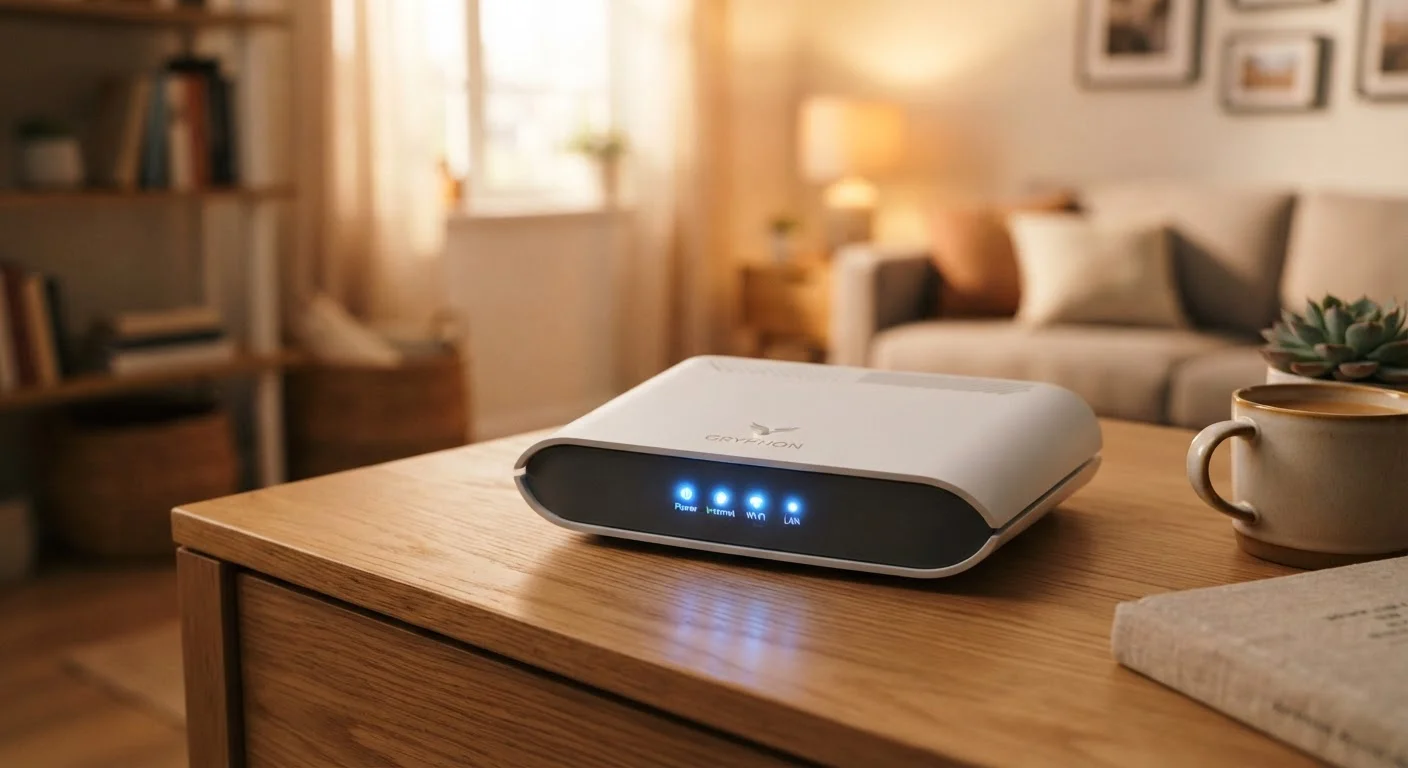
What a Router Actually Does
Most people think of a router as a simple pass-through - a box that takes the internet from the wall and sprays it around the house. That picture undersells the device considerably. A router is, at its core, a traffic manager for a local network. It receives data packets coming in from the internet, determines which device inside your home requested them, and sends each packet to the right destination.
It also works in reverse: when your laptop sends a request out - say, loading a web page - the router forwards that request to the broader internet on your behalf, then collects the response and routes it back to you, not to the TV or the phone sitting next to you.
To do all of this, your router maintains a dynamic map of every connected device, updated constantly. Each device gets a private IP address assigned by the router through a protocol called DHCP. Think of it as a seating chart your router rewrites every time a new guest shows up. For a fuller glossary of these terms, see Internet Terminology Every Household Should Know.
The Router vs. the Modem: Two Different Jobs
The modem translates the signal from your internet service provider (ISP) - whether that's a cable line, fiber optic connection, or phone line - into a digital signal your home network can use. The router then takes that signal and distributes it across your devices.
Many ISPs supply a single unit that combines both functions, sometimes called a gateway. Convenient, but it's still two distinct jobs happening inside one box. Understanding the distinction matters when troubleshooting: if no devices can reach the internet at all, the problem is likely the modem side. If some devices connect and others don't, the router side is worth examining first.
To understand what type of connection your modem is receiving from the street, see Internet Service Types Explained.
How Your Router Manages Traffic
Every piece of data moving through your network is broken into small packets, each labeled with a source and destination address. Your router reads those labels - a process called packet switching - and decides the fastest path for each packet to take.
A key technology enabling this is NAT, or Network Address Translation. Your ISP assigns your home a single public IP address. NAT lets your router share that one address among every device in the house by keeping an internal table of which private device made which request. From the internet's perspective, all your traffic looks like it comes from one source.
This architecture also provides a basic layer of protection. Unsolicited incoming traffic - connection attempts your devices never initiated - gets dropped at the router by default. It's a simple but effective barrier. For context on what happens when traffic leaves your protected home network, our article on public Wi-Fi risks explains the difference clearly.
Restarting your router once a month clears its memory tables and often resolves sluggish performance before it becomes a noticeable problem.
Routers run continuously and their internal memory can accumulate stale session data over time, which can degrade routing efficiency without triggering any obvious error.
Place your router in a central, elevated location - not inside a cabinet or on the floor - to maximize signal coverage throughout your home.
Wi-Fi signals radiate outward in roughly spherical patterns and are absorbed by dense materials like wood, concrete, and metal. Central, open placement minimizes the number of obstacles the signal must pass through.
Wi-Fi Bands Explained: 2.4 GHz vs. 5 GHz vs. 6 GHz
Modern routers broadcast on multiple radio frequency bands simultaneously. Each band involves a trade-off between range and speed.
- 2.4 GHz: Travels farther and passes through walls more easily, but offers lower maximum speeds and is more susceptible to interference from neighboring networks, microwaves, and Bluetooth devices.
- 5 GHz: Faster speeds, but shorter effective range. Best for devices close to the router - streaming boxes, gaming consoles, laptops at a desk.
- 6 GHz (Wi-Fi 6E and Wi-Fi 7): The newest band, available only on recent hardware. Even faster with less congestion, but the shortest range of the three.
Most modern routers handle band selection automatically through a feature called band steering, nudging devices toward whichever band serves them best at a given moment. For a deeper comparison of wired versus wireless performance in specific scenarios, see Wired vs. Wi-Fi Connections at Home.
~25+
Average connected devices per U.S. household
Industry research consistently shows American homes now connect far more devices than a single router was originally designed to manage simultaneously.
9.6 Gbps
Maximum theoretical throughput of Wi-Fi 6
The Wi-Fi Alliance specifies Wi-Fi 6 (802.11ax) maximum theoretical speeds; real-world performance depends on distance, interference, and device capability.
Security Features Built Into Your Router
Beyond NAT, most consumer routers include a built-in stateful firewall. This tracks the state of each network connection - not just individual packets - and blocks traffic that doesn't correspond to a known active session. It's a more sophisticated form of filtering than simply checking IP addresses.
Many routers also offer a guest network feature: a separate Wi-Fi network that keeps visitors off your primary network where your phones, computers, and smart home devices live. Smart home gadgets are a particular reason to use this - many have weak security profiles, and isolating them limits the damage if one is compromised.
DNS filtering is another capability found in some routers, allowing them to block connections to known malicious domains before a device ever loads them. This works at the network level, protecting every device simultaneously.
Settings Worth Changing on Your Router
Routers ship from the factory with default credentials and settings that prioritize convenience over security. A few changes make a meaningful difference:
- Change the admin password: Default router login credentials are publicly documented. Set a strong, unique password the moment you set up a new device.
- Update the firmware: Router manufacturers release firmware updates that patch security vulnerabilities. Many routers can do this automatically - enable it if the option exists.
- Rename your network: Default network names often reveal the router model, giving an attacker useful information. A neutral name doesn't help anyone identify your hardware.
- Enable WPA3 encryption: If your router supports it, WPA3 is the current standard for Wi-Fi encryption. WPA2 is acceptable; avoid anything older.
- Disable remote management: Unless you specifically need to access your router's admin panel from outside your home, this feature should be off.
If you're just getting a home network running from scratch, Your First Home Internet Setup covers equipment and configuration from the beginning.
The content on this site is provided for informational purposes only and should not be considered a substitute for professional advice. While we strive to provide accurate and up-to-date information, we make no guarantees regarding its completeness or accuracy. Always consult a qualified professional for advice specific to your circumstances before making any decisions.