

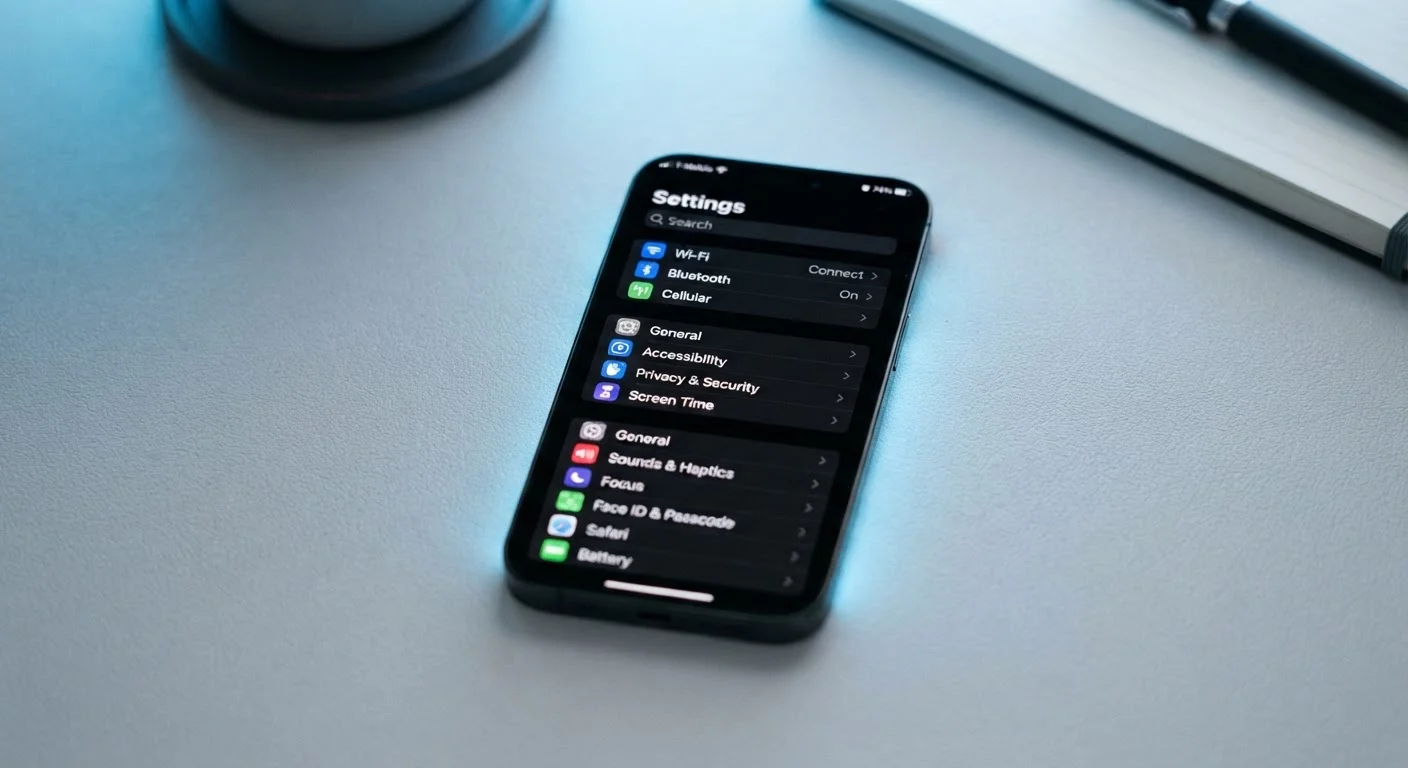
Why Default Settings Often Work Against You
When you pull a new phone out of the box, it's configured to serve the manufacturer and app developers as much as it serves you. Default settings are designed for broad compatibility and feature visibility - not for maximizing your battery, minimizing data sharing, or giving you the smoothest possible experience. Most people accept these defaults without question, and that's exactly what they're counting on.
The good news: you don't need to be a tech expert to take back control. A focused review of a few key settings areas can improve how your phone performs, how long it lasts between charges, and how much of your personal data gets shared in the background. For a deeper look at what hardware choices actually affect real-world performance, see our guide to phone specs that actually matter.
The Most Common Settings Mistakes - and How to Fix Them
These are the settings oversights that affect the most users, across both Android and iOS devices.
Leaving background app refresh enabled for every app.
Why it happens: Background app refresh is turned on by default, and most users never investigate what it does. It sounds like a useful feature, so people leave it alone.
Keeping location services set to 'Always On' for apps that don't need it.
Why it happens: Apps often request 'Always' location access during onboarding, and users tap 'Allow' to get past the prompt quickly without reading the fine print.
Ignoring the 'Personalized Ads' or ad tracking setting.
Why it happens: This setting is buried in privacy menus and rarely surfaced during setup. Many users don't know it exists.
Leaving screen brightness at maximum or not using adaptive brightness correctly.
Why it happens: Max brightness looks better and is easier to see outdoors, so users crank it up and forget to dial it back - or distrust adaptive brightness because it sometimes adjusts at inconvenient moments.
Never reviewing which apps have microphone or camera access.
Why it happens: Permissions are granted app by app during installation, so users lose track of what they've approved over time. There's no recurring prompt to review them.
Making these changes doesn't require deep technical knowledge. Most settings are reachable in two or three taps from your phone's main Settings app. If you're setting up a device from scratch, our Android setup walkthrough covers privacy and battery settings as part of the initial configuration process.
Privacy Settings Deserve Their Own Audit
Battery and usability settings get a lot of attention, but privacy settings are where the stakes are highest. Many apps request access to your location, contacts, microphone, and camera - and users often grant these permissions during setup without a second thought. Revisiting those permissions periodically is a straightforward but underused habit.
Location Access Is Broader Than You Think
Many apps set to 'Always' location access continue tracking your whereabouts even when the app is closed. This includes some apps where constant location access serves no clear purpose for the user. Review each app's location permission and switch most to 'While Using' or 'Never' unless there's a clear reason for continuous access. This applies to both iOS and Android.
On both major platforms, you can view a full list of apps and the permissions they hold under Settings > Privacy (iOS) or Settings > Privacy & Security (Android). Apps that haven't been used in months but still hold location or microphone access are worth revoking. For a broader look at your digital footprint, the Online Safety hub covers practical steps for protecting your data across devices and platforms. And if you use social media, social media privacy settings worth knowing about is worth reading alongside this one.
Settings That Quietly Drain Your Battery
Several default settings consume battery power in ways that aren't immediately obvious. High screen refresh rates, always-on displays, and maximum screen brightness all draw more power than most users need in everyday conditions. Similarly, having your phone search aggressively for Wi-Fi or switch constantly between 4G and 5G can drain the battery faster - particularly in areas with spotty 5G coverage. Our explainer on what 5G actually means for your phone breaks down when those connectivity trade-offs are worth making.
These aren't dramatic fixes, but cumulatively they add up. Pairing smarter settings with good charging habits can make a noticeable difference in how your phone holds up through the day. For more on that side of things, see the truth about charging your phone overnight. And if you're in the habit of accumulating apps and files, smartphone storage explained covers how storage use connects to overall performance.
The content on this site is provided for informational purposes only and should not be considered a substitute for professional advice. While we strive to provide accurate and up-to-date information, we make no guarantees regarding its completeness or accuracy. Always consult a qualified professional for advice specific to your circumstances before making any decisions.